
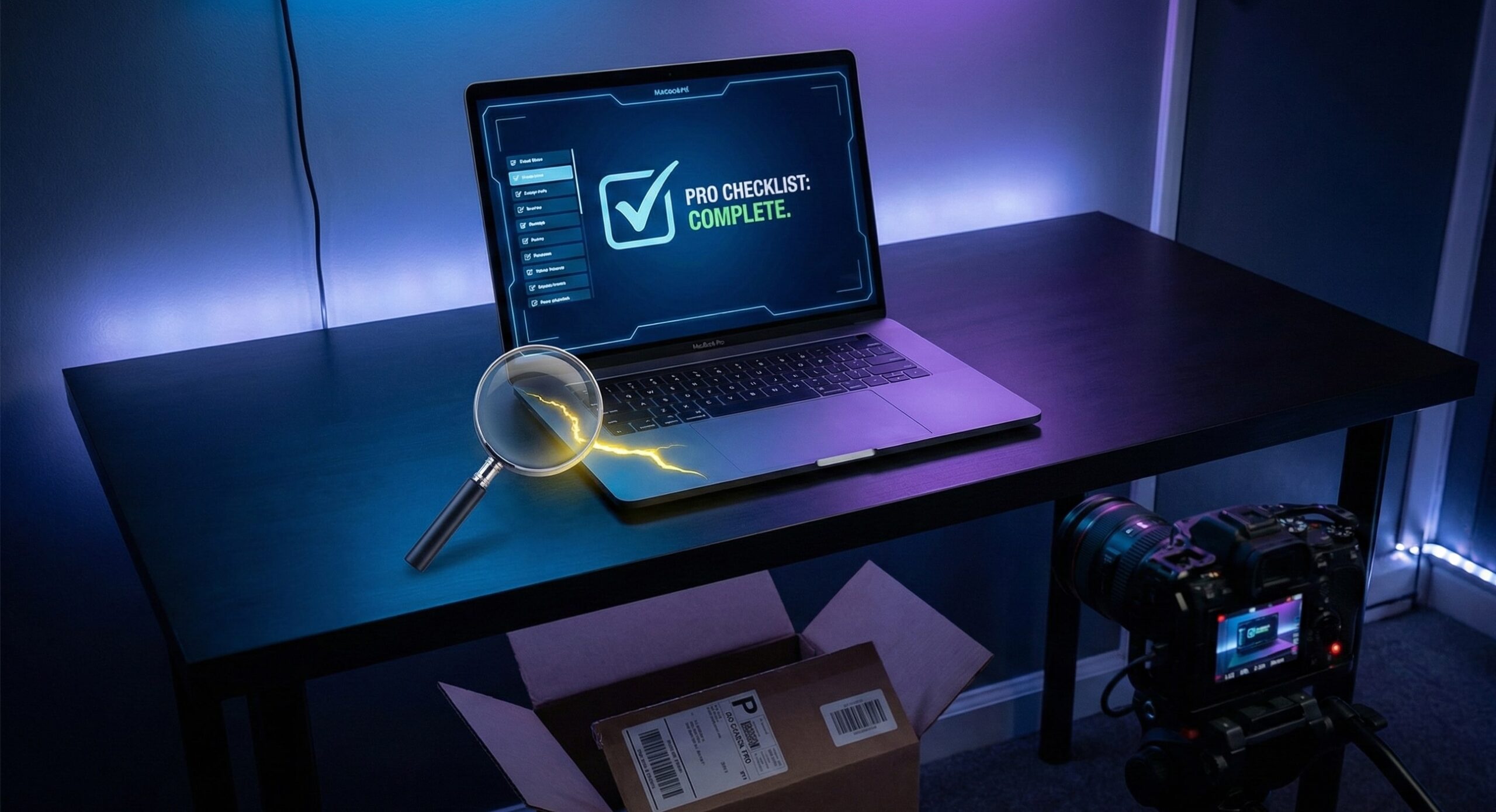
There is nothing quite like the smell of a brand-new laptop. But as someone who has unboxed dozens of machines—from high-end MacBooks to budget-friendly Chromebooks—I’ve learned that the first 30 minutes are the most critical.
In the tech world, we call a faulty unit a “lemon.” Even the best brands have them. If you don’t catch a manufacturing defect within your initial return window, you’re stuck with a lengthy and frustrating warranty repair process.
Here is my personal, battle-tested checklist to ensure your new investment is perfect.
The “Golden Rule” of Online Shopping: Record Everything
Before you even grab the scissors, do this one thing: Record a continuous unboxing video. I can’t tell you how many times this has saved me. If the screen is cracked or the box was tampered with during shipping, a video is your “get out of jail free” card for returns. Start with the shipping label, show all six sides of the box, and don’t stop recording until the laptop is out and powered on.
1. Inspect the Physical Seals and Chassis
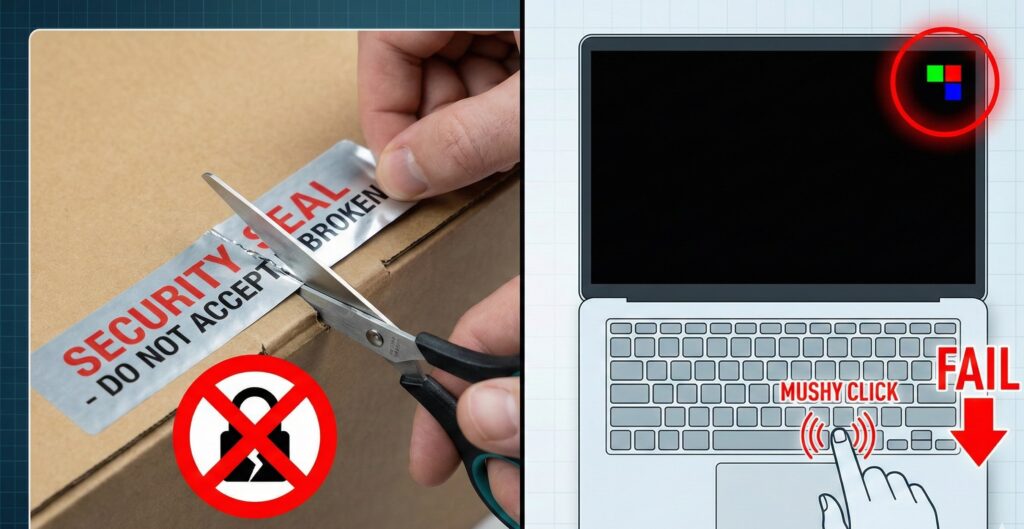
Manufacturers like Dell, HP, and Apple use specific security tape. If that tape looks peeled, doubled up, or messy, you might have been sent an “Open Box” unit instead of a brand-new one.
- The Hinge Test: Open and close the lid five times. It should be smooth. If you hear a “pop” or “crunch,” that’s a structural defect.
- The Alignment Check: Lay the laptop flat on a table. Does it wobble? A warped chassis is more common than you’d think.
2. Hunt for “Dead Pixels” (The Screen Test)
A single dead pixel can be an eyesore for years. Manufacturers often won’t cover a replacement if you find it months later.
- How to do it: Go to a site like Dead Pixel Buddy. Cycle through solid colors: Black, White, Red, Green, and Blue.
- Pro Tip: Look closely at the corners for Backlight Bleed (yellowish light leaking through the edges) while on the black screen. A little is normal; a lot is a reason to return it.
3. The Keyboard and Trackpad “Stress Test”
Don’t just type your name. Open a blank document and hit every single key, including the Function (Fn) row and the NumPad.
- The Feel: Are any keys “mushy” or stuck?
- The Trackpad: Click in every corner. Does it register? Does the multi-touch gesture (three-finger swipe) work smoothly?
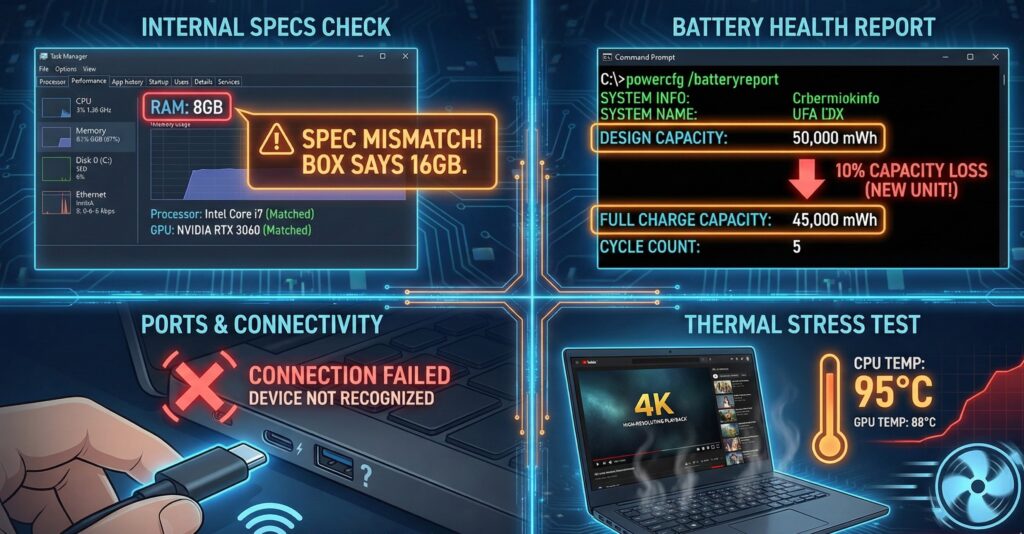
4. Verify the “Guts” (Internal Specs)
I’ve seen cases where the box says “16GB RAM” but the internal machine only has 8GB due to a factory sorting error.
- The Shortcut: Press
Ctrl + Shift + Escto open Task Manager. - What to check: Click the Performance tab. Verify the CPU model, RAM capacity, and GPU. Ensure the SSD storage matches what you paid for.
5. Generate a Battery Health Report
Even a “new” laptop might have been sitting in a warehouse for a year, which can degrade the battery.
- The Expert Move: Search for
cmdin Windows, right-click to Run as Administrator, and type:powercfg /batteryreport - The Analysis: Open the generated file. Compare Design Capacity vs. Full Charge Capacity. If the capacity is already down by more than 3-5%, you’ve got an old battery.
6. Port and Connectivity Audit
We live in a wireless world, but physical ports still matter.
- Plug in a USB drive to every port.
- Test the HDMI/USB-C display output.
- Wi-Fi Check: Move 20 feet away from your router. If the signal drops to one bar while your phone stays at full strength, the laptop’s Wi-Fi antenna might be loose.
7. The 20-Minute “Thermal Stress” Run
A laptop might work fine while browsing, but fail when it gets hot.
- The Test: Open YouTube and play a 4K HDR video for 20 minutes.
- What to watch for: Do the fans sound like a jet engine? Does the keyboard get painfully hot? If the laptop throttles or shuts down, the thermal paste application was likely botched at the factory.
My Personal Take: Why I Never Skip These Steps
A few years ago, I bought a premium workstation. It looked perfect. It wasn’t until Day 10 that I realized the SD card reader didn’t work. Because I found it early, I got a brand-new replacement in 48 hours. If I had waited, I would have been without a computer for 3 weeks while it sat in a repair center.
Bottom line: You worked hard for your money. Make sure the manufacturer worked just as hard on your machine.
You might also like: Decoding Cat Food Labels: The Technical Guide to Avoiding Marketing Traps in Buying Guide